






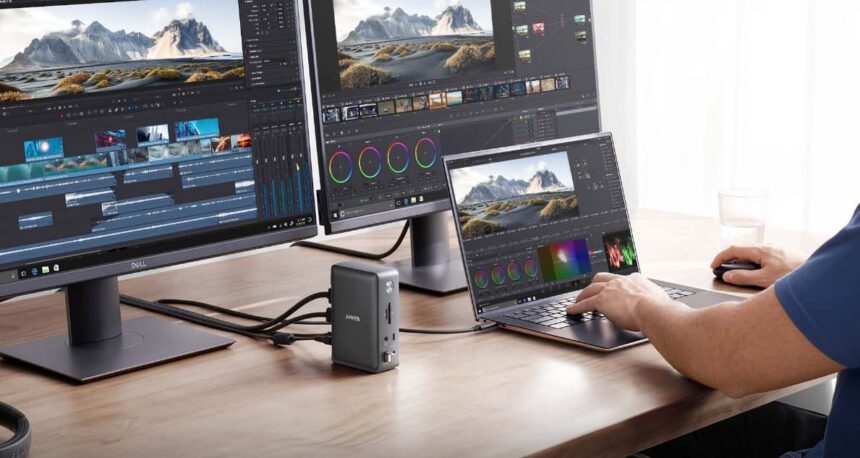
Having a versatile and efficient workspace is crucial in today’s fast-paced work environment. Docking stations have emerged as a game-changer for professionals and creatives alike, offering a seamless way to connect multiple peripherals to your laptop. However, one common question lingers: are docking stations compatible with all laptops? This comprehensive guide aims to answer that question and more, providing insights into the world of docking stations, with a special focus on Anker’s top models, such as the 563, 575, and 577. Whether you’re a MacBook user, a Windows enthusiast, or someone navigating the ChromeOS landscape, this guide will help you find the perfect docking station for your needs.
What Is a Docking Station and How Does It Work
A docking station is a hardware device designed to expand the connectivity options of a laptop. By connecting your laptop to a docking station, you can transform your portable device into a fully-fledged workstation, complete with multiple monitors, external keyboards, mice, printers, and more. Docking stations typically connect to your laptop via a single cable, which simplifies your workspace and reduces cable clutter. Internally, docking stations work by providing additional ports and interfaces that your laptop might lack. These ports include HDMI, DisplayPort, USB-A and USB-C, SD card readers, and Ethernet connections. Many docking stations also offer power delivery (PD) through the same cable, meaning you can charge your laptop while using all the additional peripherals. The efficiency of a docking station lies in its ability to consolidate and manage these connections, allowing for quick and easy transitions between mobile and stationary work environments.
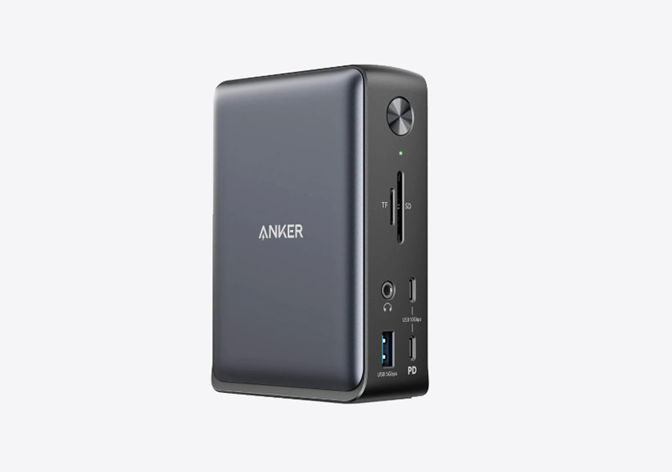
Are Docking Stations Compatible with All Laptops? Key Factors to Consider
Laptop Port Types (USB-C, Thunderbolt, HDMI, etc.)
The first and foremost consideration is the type of ports your laptop has. USB-C and Thunderbolt are the most versatile options, supporting high-speed data transfer, video output, and power delivery. HDMI ports, while great for video output, don’t support data transfer or charging. Make sure your docking station’s connection type matches your laptop’s ports.
Operating System Compatibility (Windows, macOS, ChromeOS)
Most modern docking stations are designed to work with a variety of operating systems, including Windows, macOS, and ChromeOS. However, it’s essential to verify compatibility with your specific OS version, especially if you’re using software or hardware with unique drivers or configurations. Some docking stations may offer better performance or support on one system over another.
Power Delivery and Charging Requirements
When selecting a docking station, make sure it supports power delivery (PD) if your laptop uses USB-C or Thunderbolt for charging. Different laptops have different power requirements, so it’s important to match the station’s PD capabilities with your device’s needs. This ensures efficient charging while you work, preventing power shortages or interruptions during use.
Display Support and Multi-Monitor Capabilities
For users who require multiple monitors, the docking station should offer support for the number and resolution of screens you plan to connect. Verify the presence of DisplayPort, HDMI, or MST (Multi-Stream Transport) technology to guarantee that your docking station can handle high-definition or 4K displays, as well as the necessary number of monitors for your setup.
Top Anker Docking Stations for Different Laptops
Anker 563 USB-C Docking Station (10-in-1)
This versatile docking station is ideal for professionals and creatives who need a dual-monitor setup. With dual HDMI ports supporting 4K@30Hz, USB-C and USB-A ports, an SD card reader, and Ethernet connectivity, the 563 covers all bases. It’s perfect for USB-C laptops, including MacBook, Dell XPS, and HP Spectre models. Its sleek design and robust performance make it an excellent choice for those who need a reliable and compact solution.
Anker 575 USB-C Docking Station (13-in-1)
For power users who require extensive connectivity and high-speed data transfer, the 575 is a standout choice. With dual HDMI and DisplayPort outputs, USB-C and USB-A ports, SD/microSD card readers, Ethernet, and an impressive 85W power delivery, this docking station works seamlessly with USB-C and Thunderbolt laptops. Its comprehensive feature set makes it ideal for creative professionals, gamers, and anyone who needs a versatile and powerful setup.
Anker 577 Thunderbolt Docking Station
Optimized for MacBook users and professionals needing Thunderbolt speeds, the Anker 577 docking station is a powerhouse. With Thunderbolt 3 port supports, dual 4K display capabilities, and 85W power delivery, it offers unparalleled performance. Its sleek, minimalistic design complements Apple’s aesthetics while providing the robust connectivity needed for demanding workflows.
How to Ensure Compatibility with Your Laptop?
Check Your Laptop’s Ports and Specifications
Before purchasing a docking station, it is crucial to thoroughly review your laptop’s specifications and the types of ports it possesses. This meticulous examination will enable you to select a docking station model that seamlessly aligns with your laptop’s hardware capabilities. Pay close attention to the number and variety of ports available on your laptop, such as HDMI, USB-C, Thunderbolt, and DisplayPort, as these will determine which docking station will best accommodate your needs. Additionally, consider the laptop’s data transfer speeds and power requirements to ensure compatibility with the docking station’s offerings.
Verify Operating System Requirements
Although most docking stations are designed to be compatible with multiple operating systems, it is still advisable to double-check their compatibility with your specific operating system. This is particularly important if you rely on specialized software that might have unique requirements or known compatibility issues. By verifying compatibility ahead of time, you can avoid potential conflicts that could disrupt your workflow or necessitate returning the docking station.
Test Power Delivery and Display Output
Whenever possible, take the opportunity to test the docking station with your laptop before making a final purchase decision. This hands-on approach allows you to check for proper power delivery, ensuring that your laptop receives adequate charging while connected. Additionally, verify the display output to make sure it supports the resolution and number of monitors you need for your work or entertainment setup. This practical testing can help you avoid disappointments and ensure that the docking station meets all your functional requirements.
Read User Reviews and Manufacturer Guidelines
User reviews serve as a treasure trove of information regarding a docking station’s real-world performance and any compatibility issues users may have encountered. These insights can highlight potential drawbacks or unexpected benefits that might not be apparent from the product description alone. Furthermore, manufacturer guidelines often contain detailed compatibility charts that outline which laptop models and operating systems the docking station supports. They may also provide valuable troubleshooting tips and FAQs that can help you resolve any issues that may arise after purchase. By consulting both user reviews and manufacturer guidelines, you can make a more informed decision and ensure a smoother setup process.
Conclusion
In conclusion, while docking stations aren’t universally compatible with all laptops, understanding your laptop’s specific needs and the features offered by different docking station models can help you find the perfect match. Anker’s range of docking stations, including the 563, 575, and 577, offers versatile solutions tailored to various laptops and workflows. By considering factors like port types, operating system compatibility, power delivery, and display support, you can ensure that your docking station enhances your productivity and creates a seamless work experience. Whether you’re a MacBook user, a Windows powerhouse, or navigating ChromeOS, the right docking station can transform your workspace and elevate your efficiency.